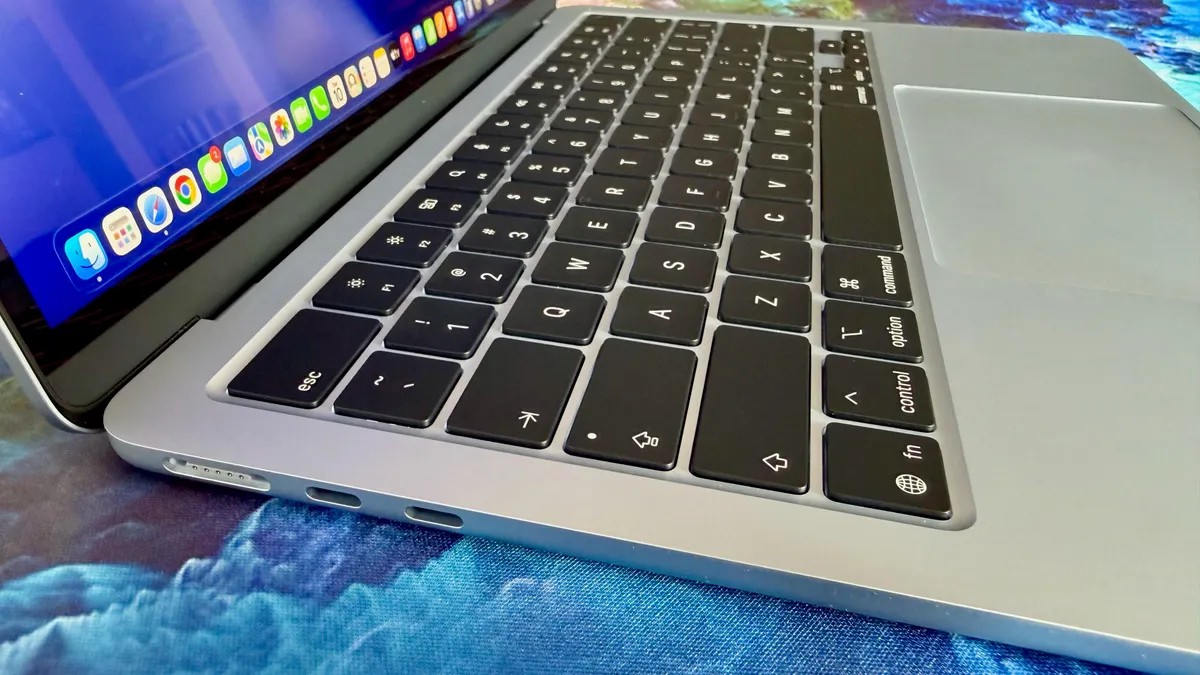
Today is World Backup Day, a critical reminder that data loss is inevitable without proper precautions. Whether from hardware failure, software corruption, or accidental deletion, losing important files can be devastating. Fortunately, backing up your Mac is straightforward, and Apple provides tools to make it nearly automatic.
Why Backups Matter: Beyond Convenience
The need for backups extends beyond simple data preservation. Regular backups are your lifeline when upgrading to a new Mac, transferring all apps, settings, and files seamlessly. They also safeguard against ransomware attacks, which have surged in recent years, and ensure you don’t lose years of work to a single mistake.
Time Machine: Your Mac’s Built-In Backup Solution
MacOS includes Time Machine, a user-friendly application that automates the backup process. Once set up, it runs silently in the background, creating hourly backups for the past 24 hours, daily backups for the past month, and weekly backups for older data.
Setting Up Time Machine:
- Connect an external drive (USB, Thunderbolt, or network-attached storage) to your Mac.
- If prompted, choose to use the drive with Time Machine. If not, go to System Settings > General > Time Machine and click Add Backup Disk.
- Time Machine will format the drive (erasing all data), so ensure it’s empty or contains non-essential files.
- Consider encrypting backups for added security; this requires a password to restore.
Drive Size: A good rule of thumb is to choose a drive 1.5 to 2 times the capacity of your Mac’s internal storage. For example, a 512GB Mac should use a 1TB drive.
iCloud: Limited Backup, Useful Supplement
Apple’s iCloud service offers automatic syncing for certain files, but it isn’t a complete backup solution. It doesn’t cover system settings, app configurations, or all local data.
You can check what’s being backed up in System Settings > Internet Accounts > iCloud.
iCloud Storage Plans:
- 50GB: $1/month
- 200GB: $3/month
- 2TB: $10/month
- 6TB: $30/month
- 12TB: $60/month
Restoring Your Mac
Time Machine allows restoring individual files or the entire system. To browse backups, click the Time Machine icon in the menu bar and choose Browse Time Machine Backups. Navigate through previous versions like flipping through cards to find the desired state and restore.
In conclusion: Don’t wait for a disaster to strike. Set up Time Machine today and supplement it with iCloud if needed. Protecting your data is a simple but vital step in modern digital life.