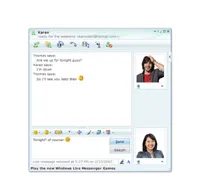
Email is slow. Sometimes you need an answer now, not in a few hours when someone finally checks their inbox. You want to hang out. You want to see someone’s face while they talk. That is where instant messaging (IM) steps in. And for a while, there was one clear king of the hill.
Microsoft’s Windows Live Messenger wasn’t just a chat app. It was the centerpiece of a massive shift in how people communicated online.
From MSN to Windows Live: A Rebranding Shift
In 2006, Microsoft didn’t just update its software. It rebranded its entire communication suite. The old names—MSN Hotmail, MSN Messenger—were swept away. They were replaced by the “Windows Live” brand.
MSN Messenger was the engine under the hood. By November 2007, it had evolved into Windows Live Messenger. This wasn’t just a name change. It was an attempt to integrate email, file sharing, and chat into one seamless experience. Microsoft wanted users to stop jumping between apps. They wanted one login. One identity.
The Numbers Don’t Lie
Let’s look at the data. It’s staggering.
In February 2006, MSN Messenger was the most widely used instant messaging service in the world. The stats were hard to ignore:
- 61 percent of all IM users globally were on MSN.
- 57.4 million users in Europe alone. That was 70 percent of the European market.
- In North America, the fight was tighter. MSN held about one-third of the market. Roughly 23 million users. They were competing head-to-head with AOL’s AIM and Yahoo Messenger.
But by November 2007, the landscape had shifted completely. Windows Live Messenger became the world’s largest IM service. The user count skyrocketed to more than 294 million active users worldwide.
That is a massive leap. It happened because Microsoft integrated the service deeper into Windows. It became the default. It felt native.
More Than Just Text
You might think IM is just about typing “k” or “lol”. It’s more. Windows Live Messenger offered features that made it stickier than competitors.
Users could:
- Connect with friends and family by voice and video. Real conversations. Not just text.
- Send text messages directly to smartphones or other mobile devices. This was huge before modern SMS apps took over.
- Control privacy. You decided how and when your contacts saw you online. Away statuses. Invisible modes. It gave users control over their digital presence.
The i’m Initiative
Microsoft was pushing hard. They launched the “i’m” initiative. This wasn’t just marketing fluff. It was about making communication personal. I’m here. I’m online. I’m ready to talk.
The question on everyone’s mind was simple: How do I get started? How do I use these services? What is this new initiative really about?
The answer started with accessibility. Microsoft made downloading Windows Live Messenger incredibly easy. It was integrated into the OS. It was available on the website. It was free.
The barrier to entry was low. The network
Connecting Without the Desktop App
Let’s be honest: the era of the standalone Windows Live Messenger client is effectively over. The service didn’t just vanish; it evolved into what we now know as Windows Live Messenger for web and, eventually, Skype. If you are looking for that specific, lightweight instant messaging experience that defined the mid-2000s, you won’t find it in the modern Microsoft ecosystem. However, the core functionality—real-time communication—lives on, albeit in a more integrated, cloud-heavy form.
When Windows Live Messenger was at its peak, the barrier to entry was practically non-existent. You downloaded the client, and it handled your Yahoo, AOL, and MSN identities under one roof. Today, that fragmentation is gone, but so is the simplicity. Modern communication tools like Skype or Microsoft Teams require accounts, often tie into larger productivity suites, and demand more bandwidth. The “simple download” of the past is now a subscription or a web-login dance.
The Death of the Buddy List
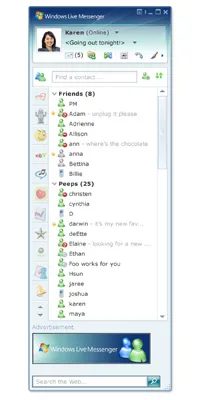
The interface described in the old documentation—the buddy list, the “gleam” notifications, the word wheeling—is a relic. Those features were brilliant for their time. “Word wheeling” allowed you to type a letter and instantly jump to a contact, a speed dial for the social graph. Contact cards showing what someone was doing online felt like magic in 2005.
Today, that data is buried in the activity feed of Facebook, the status of Slack, or the presence indicator of Teams. The concept of a single, unified contact card that showed your phone number, birthday, and current activity across all services has been fragmented by privacy regulations and platform silos. You can’t just “see” what a Yahoo contact is doing anymore because Yahoo doesn’t want you doing that. The social graph is no longer a single list; it’s a scattered network of apps.
Sharing Files in the Cloud Era
The file sharing feature of Windows Live Messenger allowed users to create shared folders that synced automatically. It was encrypted. It handled large files. It was impressive. But it was also a precursor to the cloud storage wars that followed.
Today, sharing a folder isn’t a feature of your chat app; it’s a feature of OneDrive, Dropbox, or Google Drive. You send a link, not a file. The encryption is still there, but the context is different. You aren’t sharing a folder within a chat; you are delegating access to a cloud repository. This change reflects a broader shift: the chat app is no longer the storage hub. It’s just the notification system. The heavy lifting happens elsewhere.
Video and Voice: The Real Evolution
The original guide teased “phone and video calls” as the next step. That’s where the technology actually went. Voice and video weren’t add-ons; they were the main event. Skype absorbed the technology that made Windows Live Messenger feel futuristic. The quality improved. The encryption got stronger. The integration with landlines and mobile numbers expanded.
But here’s the catch: Skype has also changed. It’s heavier now. It’s part of a larger Microsoft 365 strategy. It’s not the lean, free instant messenger it once was. For many users, the experience has become more complex, more corporate, and less personal. The “free” aspect is still there for peer-to-peer calls, but the ecosystem around it is designed to sell you credits, subscriptions, and business licenses.
Why the Old Simplicity is Gone
The reason you can’t just “click install” and get a unified messenger anymore is because the internet broke. The open web of 2005, where protocols like XMPP and simple HTTP-based messaging could cross domains freely, has been replaced by walled gardens. Apple has iMessage. Meta has WhatsApp. Google has Google Chat. Microsoft has Teams. Each wants you to stay in their walled garden. Each wants your data. Each wants to sell you something.
Windows Live Messenger was a bridge between these worlds. It let you talk to a Yahoo friend while you were on MSN. It was neutral. It was useful. Now, neutrality is dead. You have to choose your platform, and you have to live with its limitations.
The Legacy Lives On
For those who remember the “gleam” notification or the ease of adding a Yahoo contact to a Windows Messenger buddy list, it feels like a lost art. But the technology didn’t disappear; it just got heavier, smarter, and more expensive. The core need—to talk to friends, share photos, and collaborate on documents—remains the same. The tools are just more complex.
If you’re looking for that old feeling, you’ll have to look for third-party clients or stick to the web versions of legacy services. But even those are fading. The chat interface of the future isn’t a desktop app. It’s embedded in your operating system, your browser, or your smart speaker. It’s always on. Always connected. And always watching.
The simplicity is gone. The power is still there. But it’s harder to find.
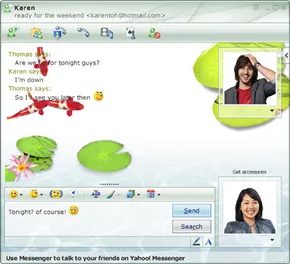
Real-time chat isn’t just text anymore. Sure, you can watch letters appear on your screen and type back, but Windows Live Messenger let you bridge the gap between written words and actual conversation. The platform supported traditional instant messaging alongside Voice over Internet Protocol (VoIP) calls and video chats. It wasn’t just about being seen or heard. It was about accessibility. Here is how those specific features functioned under the hood.
Voice Calling Mechanics
Making a peer-to-peer voice call was straightforward. It was also cheap. In fact, the service itself cost nothing. You only paid for your broadband connection. But hardware mattered. You needed compatible speakers, a microphone, or a headset. Without that gear, you were shouting into the void.
Both parties had to be on the same page. That meant downloading Windows Instant Messenger and finishing the Windows Live ID sign-up process. No exceptions. If one person wasn’t logged in, the call wouldn’t go through.
The process was linear. Click the phone icon. Select “Call Computer.” Your contact’s machine would ring. Accept the invitation. Start talking. Simple. Free. Provided your ISP bill was paid.
Video Call Setup
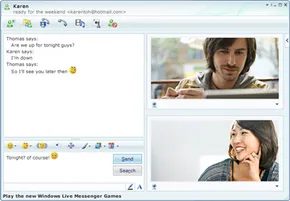
High-definition video added a layer of complexity. The equipment requirements spiked. You needed a web camera. You still needed audio gear—microphones and speakers or a headset. High-speed internet became non-negotiable. Latency ruins video calls.
The login requirement remained the same. Both users needed to be active on Windows Instant Messenger. Again, the call was free. The internet cost remained your responsibility.
Initiating a video chat offered two paths. You could click the dedicated Video icon. Or you could right-click a specific contact, choose “Video,” and hit “Start Video Call.” An invitation flew across the network. Once the other side accepted, the stream began. No handshake. No setup wizard. Just presence.
Beyond the Desktop
Windows Live Messenger didn’t stay confined to the PC. It expanded. Smartphones joined the ecosystem. Mobile devices gained access to the chat network. Even the Xbox 360 gaming platform integrated the messenger. The boundary between gaming, mobile, and desktop blurred. You could game, talk, and text simultaneously. The platform aimed for ubiquity.
You don’t need to be tethered to a desk to keep in touch. Microsoft expanded Windows Live Messenger far beyond the traditional PC, allowing users to chat via smartphones, other mobile devices, and even the Xbox 360 console. This shift changed how people managed their social graph, blending gaming identities with personal contacts.
Windows Live Messenger Mobile
Getting Windows Live services onto a handset worked in two distinct ways. You could either access it through a browser or install dedicated software.
Browser Access
If your phone had a built-in browser supporting WAP 2.0, iMode, or HTML, you were good to go. Most Web-enabled phones from that era fell into this category. You could log in and check on friends without cluttering your device with extra apps.
Dedicated Software
Some phones shipped with Windows Live pre-installed. If yours didn’t, you might have been able to download a version tailored to your specific model. This client offered more than just text. You could:
- Download your contact list directly to the phone’s address book.
- Carry on full IM conversations.
- Update your online status so friends knew you were there.
- Take photos or record sound clips mid-conversation and send them along.
The feature set wasn’t universal. It depended heavily on your cell service provider. Also, keep in mind that while the messenger itself was free, the connectivity wasn’t. You still needed a service plan for Internet, Wi-Fi, and phone access. Sending large files? That likely came with extra data charges.
Xbox 360 Integration
The Xbox 360 changed the social dynamics of gaming. You could IM with your Windows Live Messenger contacts and your Xbox Live friends. The real kicker? You could merge those two lists into a single roster.
Once linked, you could broadcast your current activity on the console to your contacts. You could hold up to six simultaneous conversations with different people. Need to type a long message? Plug in a PC keyboard and chat while watching video or playing a game.
Setting Up on Xbox 360
The setup process was straightforward but required a few steps:
- Create your Xbox Live account and register for a Windows Live ID.
- Navigate to the Xbox Live area on the dashboard.
- Select “Chat and IM.”
- Choose the Messenger tab, click “Continue,” then “Sign Up for Messenger.”
- Type your password, select “Done,” then “Save Password” and “Continue.”
- A list of your Windows Live contacts who were also on Xbox Live would appear. Invite them to your friends list and finish.
To sign in later, return to the Xbox Live dashboard, go to “Chat and IM,” select the Messenger tab, and choose “Sign In to Messenger.” To start a chat, pick “New Conversation,” select a contact, and type your message.
Note: Children under age 13 were not allowed to use Windows Live Messenger on Xbox Live. Microsoft provided additional tools on their website to manage access and safety settings.
The ‘i’m’ Initiative
There was another layer to this ecosystem. Microsoft encouraged users to contribute to charity while they chatted. This was part of the ‘i’m’ Initiative, allowing social interaction to drive social good.

You didn’t have to click a donation button to give back. You just had to talk.
The i’m Initiative, a partnership between Microsoft and various nonprofits, let users support causes simply by using Windows Live Messenger. The mechanism was deceptively simple. Each time a user initiated an instant message using the i’m tag, Microsoft donated a portion of its advertising revenue to the selected organization. No extra effort. No separate transaction. Just conversation.
How the Donation Logic Worked
The program was built on a straightforward premise: engagement equals contribution. Microsoft covered the administrative burden, allowing funds to go directly to the charities. Users could choose from a curated list of high-profile organizations. Options included the American Red Cross, the Sierra Club, the National AIDS Foundation, and the United Nations Children’s Fund (UNICEF).
To ensure impact, Microsoft guaranteed that each participating organization would receive a minimum of $100,000 from the initiative. This safety net encouraged participation without risking donor dollars on low-yield campaigns.
Between March 2007 and the end of March 2008, the initiative raised more than $850,000. A live counter on the official site tracked these totals in real-time, providing transparency. Users could see exactly how their conversations translated into tangible support for global causes.
Setting Up Your i’m Code
Participating required a specific version of the software. You needed Windows Messenger 8.1 or higher. If you were on an older build, you had to update first.
The setup involved modifying your display name. This wasn’t just a cosmetic change; it was the trigger for the donation algorithm.
Here is the precise workflow:
- Open the Contacts window.
- Click the arrow next to your display name and select “Options.”
- Locate the field next to your name.
- Type the specific text code for your chosen cause.
- Click “OK.”
The codes were short and memorable. For the American Red Cross, the code was *red+u. For the Sierra Club, it was *sierra. Once saved, your display name appeared with the code appended to every chat.
After that, the work was done. Every instant message sent through Windows Live Messenger contributed to the cause. There was no need to toggle settings or check boxes. The system handled the rest.
The Broader Context of Windows Live
This initiative was part of a larger strategy. Windows Live was Microsoft’s response to the evolving web communication landscape. It was a suite of applications and services designed to adapt to user needs and technological shifts.
Windows Live Messenger was the centerpiece. It wasn’t static. It was meant to grow.
In March 2008, Microsoft announced plans to integrate contacts from other social platforms. Users would soon be able to add contacts from Facebook, LinkedIn, Bebo, Hi5, and Tagged directly into their Windows Live Messenger list. This move signaled a shift toward interoperability, breaking down the walled gardens of social networking before they became too entrenched.
The i’m Initiative was one piece of this puzzle. It showed how core communication tools could serve purposes beyond mere connectivity. It turned a utility into a force for good.
More changes were coming. The landscape of online interaction was still being defined, and Microsoft was positioning itself at the center of that evolution.
For those looking to dive deeper, there were extensive resources available. Articles covered how Windows Live E-mail worked, the mechanics of instant messaging, Voice over IP (VoIP) technology,