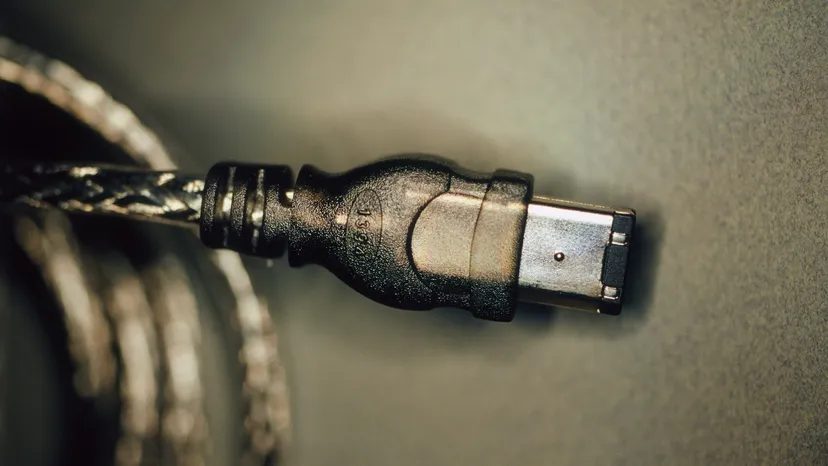
You likely know FireWire if you’ve ever dabbled in digital video. Maybe you’ve seen it called i.Link by Sony or simply referred to by its technical designation, IEEE 1394. Regardless of the label, the technology serves one primary purpose: connecting disparate hardware so data moves between them quickly and without friction.
Apple originally designed the protocol. It was standardized in 1995 as the IEEE 1394 High Performance Serial Bus. While it shares a conceptual lineage with Universal Serial Bus (USB), its architecture was built with a different set of priorities. The engineers weren’t just trying to make things “work.” They had specific performance targets in mind.
- High-speed data transfer was non-negotiable.
- The bus needed to support a large daisy chain of devices.
- Plug-and-play simplicity was a core requirement.
- Hot-plugging had to be safe and instant.
- The cable needed to provide power to connected devices.
- Manufacturing costs for both the cables and the implementation had to remain low.
Understanding this foundation changes how you view the connection. It isn’t just another port. It is a specialized interface designed for high-bandwidth tasks.
How FireWire Works
The underlying mechanism relies on a serial bus architecture. Unlike parallel connections that send multiple bits simultaneously, FireWire sends data one bit at a time but does so at remarkable speeds for its era. This simplicity reduces the complexity of the cabling and the controllers.
When you plug in a device, the bus handles the negotiation. It identifies the hardware, assigns addresses, and establishes a connection. This happens so fast that you rarely notice the handshake. The system treats the new device as if it was already there.
“FireWire is a way to connect different pieces of equipment so they can easily and quickly share information.”
This ease of use extends to power delivery. The cable carries electricity alongside data. You don’t need a separate power brick for your camera or external drive. This reduces clutter on the desk and simplifies setups for mobile editors.
Why It Was Built
The design goals were clear. Early USB implementations struggled with bandwidth. They were fine for keyboards and mice but choked on large files. FireWire was built for the heavy lifting.
It allowed users to chain up to 63 devices on a single cable. This daisy-chaining capability meant you could connect a camera, a hard drive, and a sound card without needing a hub for each one. The low cabling cost made it accessible, while the hot-plug feature meant you could swap drives without rebooting.
For digital video professionals, this meant seamless integration of hardware. The bus managed the traffic efficiently, preventing the bottlenecks that plagued other standards.
The USB Comparison
It is easy to lump FireWire in with USB. They look similar. They serve similar functions. But the differences in implementation matter.
USB was designed for cost efficiency and broad compatibility. FireWire was designed for performance and robustness. The peer-to-peer architecture of FireWire allows devices to communicate directly without a central host controller managing every transaction. This reduces latency.
When you transfer video files, that latency reduction adds up. The process feels instantaneous because the
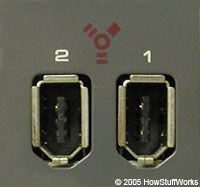
FireWire, technically known as IEEE 1394, is a data transfer protocol designed primarily for high-bandwidth digital media. Think audio and video. The latest iteration hits 800 Mbps. That is fast. Industry insiders expect it to eventually jump to 3.2 Gbps once manufacturers overhaul the physical cable infrastructure.
You can daisy-chain up to 63 devices on a single FireWire bus. Both Windows (98 and later) and Mac OS (8.6 and later) support it natively.
How Enumeration and Hot Plugging Work
Imagine plugging a digital camcorder into your PC. When the computer boots, it doesn’t just guess what is connected. It queries the entire bus. It assigns a unique address to each device. This process is called enumeration.
FireWire is plug-and-play. Connect a new device, and the OS auto-detects it. It asks for the driver disc. If the driver is already installed, the system activates the hardware immediately.
Here is the kicker: FireWire devices are hot pluggable. You can connect or disconnect them while the computer is running. No reboot required. No “safe to remove” waiting game.
The Real Numbers Behind FireWire Specs
The original standard, FireWire 400 (also called 1394a), was a beast when it launched. It outpaced USB. It is still in use today for specific legacy setups.
- Speed: Up to 400 Mbps
- Max Cable Length: 4.5 meters
Then came USB 2.0. It promised up to 480 Mbps and extended the cable limit to 5 meters. Suddenly, the gap narrowed. USB looked competitive.
But in 2002, FireWire 800 (1394b) arrived. It left USB 2.0 in the dust.
- Speed: Up to 800 Mbps
- Max Cable Length: 100 meters
The 1394b standard is backward-compatible with 1394a. You can mix generations on the same bus without breaking the chain.
FireWire vs. USB: The Architecture War
Why choose one over the other? The core difference lies in intent. FireWire is built for devices that move massive amounts of data. Camcorders. DVD burners. Professional audio interfaces.
USB won the peripheral war partly because implementing FireWire cost manufacturers more. It led to USB becoming the default for low-bandwidth devices like keyboards and mice.
But there is a deeper technical divide.
USB 2.0 is host-based.
Every connection must pass through the computer. The PC is the boss. It controls the traffic. Without the host, devices cannot talk.
FireWire is peer-to-peer.
Two FireWire cameras can communicate directly with each other. No computer in the middle. This makes it ideal for professional video workflows where equipment needs to interact independently.
Connecting the Dots
So how do you actually hook this up? The physical layer matters just as much as the protocol.
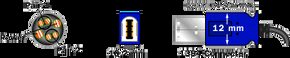
FireWire devices fall into two camps: powered or unpowered. The distinction isn’t just marketing fluff. It dictates whether the device needs its own brick plugged into the wall.
Unpowered devices are the real time-savers here. They draw power directly from the connection. You plug a camera or an external hard drive into the computer, and it just works. No extra cables cluttering your desk.
The hardware makes this possible. Inside a FireWire 400 cable, there are specific conductors dedicated to electricity. Two power conductors supply the juice. The voltage ranges from 8 to 30 volts. The current caps at 1.5 amps maximum. That’s enough to spin a small hard drive or run a webcam without breaking a sweat.
But power isn’t the only job those wires do. Data travel is equally important. In a standard FireWire 400 cable, you get two twisted pair sets. These carry the actual information. The physical connector uses a 6-pin configuration. Four pins handle data. Two handle power.
This split design matters for stability. By separating high-current power lines from sensitive data pairs, interference drops. Your video edits don’t stutter. Your file transfers finish without errors.
It’s a simple setup. But it removed a huge friction point in early digital workflows. Musicians didn’t need external power for their audio interfaces. Photographers could offload shots directly to their laptops without hunting for outlets.
The trade-off was cost. FireWire hardware was expensive. And Apple abandoned it for Thunderbolt. But for a brief moment in tech history, it made high-speed data transfer and power delivery feel effortless.
If you’re digging through old gear, check the labels. Some devices list “Bus Powered.” That means they rely entirely on that 1.5 amp limit. Heavy-duty devices usually have their own adapters. Knowing the difference saves you from buying a cable that won’t support your drive’s spin-up current.
The 6-pin connector looks dated now. But the logic behind it—combining data and power in one tidy cable—lives on in USB-C. We just forgot how much we used to hate extra wires.
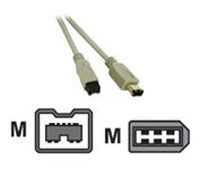
Smaller peripherals often ditched the bulky standard in favor of 4-pin connectors. It was a space-saver. Those tiny connectors skipped the two pins responsible for delivering power entirely. You had to plug them into an external power source if they needed one.
FireWire 800 changed the physical landscape. It uses a 9-pin configuration.
Six of those pins remain identical to the original 1394a (FireWire 400) connector. The extra three pins? They’re mostly about signal integrity. Two of the added pins provide a “grounded shield” to protect the other wires from interference. The third added pin does nothing at this time [ref]. It’s essentially a placeholder.
Because FireWire 800 is backward-compatible with FireWire 400, there are a variety of adapters available to facilitate the combination of both standards on the same bus.
This backward compatibility is where things get practical. You don’t need to rip out your old gear to get the speed boost. Adapters abound. They let you mix FireWire 400 and FireWire 800 devices on the same bus.
But not all ports are created equal.
There are two types of FireWire 800 ports you’ll encounter in the wild. The first is a “bilingual” port. This one accommodates both FireWire standards. It handles 400 and 800 signals without missing a beat. The second type is a b-only port. This accepts only a FireWire 800 connector. Plug a 4-pin FireWire 400 device into it, and you’re out of luck. You need a specific adapter.
Sending Data via FireWire
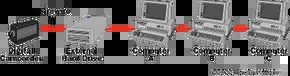
FireWire relies on a 64-bit fixed addressing scheme derived from the IEEE 1212 standard. Every packet sent over the bus breaks down into three specific components. First, there is a 10-bit bus ID that flags which FireWire bus the data originated from. Second, a 6-bit physical ID pinpoints the exact device on that bus. Third, a 48-bit storage area provides enough space to address 256 terabytes of information for each node.
Combine the bus ID and physical ID, and you get a 16-bit node ID. This allows up to 64,000 nodes on a single system. Data moves through a maximum of 16 hops. Hops happen when devices are daisy-chained. Look at this setup. A camcorder connects to an external hard drive, which connects to Computer A. Computer A links to Computer B, which links to Computer C. It takes four hops for Computer C to reach the camera.
If all devices use FireWire 800, the camcorder can sit up to 400 meters away from Computer C.
FireWire and Digital Video
Now we know the mechanics. Let’s look at why it mattered so much for streaming digital video.
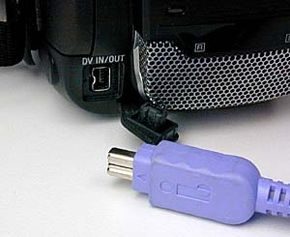
FireWire wasn’t just another cable. It was the backbone of early digital video.
Most camcorders from that era came with a FireWire port. Plugging one into a computer via this interface felt like magic. The connection was stable. Fast. Reliable.
The secret sauce was isochronous mode.
In standard data transfer, packets get checked, re-sent if lost, and shuffled around. Video doesn’t have time for that. Isoc mode bypasses the usual error correction. It guarantees bandwidth. It streams data in real-time.
Think of it like a dedicated highway. The camera requests a specific lane. The computer reserves it. No traffic jams. No dropped frames. Uncompressed video flows from lens to hard drive without interruption.
This changed everything for creators.
You could edit directly from the camera. No generational loss. Analog formats degrade every time you copy them. Digital stays pristine. FireWire kept the signal pure from capture to timeline.
The workflow was simple:
– Connect camcorder via FireWire.
– Launch editing software.
– Download footage automatically.
– Edit with zero quality drop.
It wasn’t perfect for everything. Audio? Sometimes tricky. But for video? It was unmatched.
“When the computer-to-camera FireWire connection enters isochronous mode, the camera can send the video in a steady flow to the computer without anything disrupting the process.”
Apple invented FireWire in the mid-90s. They saw the need for high-speed, real-time data before most others did.
If you’re looking into this now, you’re likely digging into retro tech or preserving old tapes. The principles still hold. Real-time data requires real-time bandwidth.
Check the links on the next page if you want to dig deeper.