You are likely typing this sentence right now. It’s hard to imagine a world without the physical interface that lets you talk to your computer. Most of us navigate the web by typing URLs directly into the address bar. We don’t just click. We type.
Typing is a learned skill. You probably took a class in elementary school. It is a core competency listed on most resumes. Without these physical keys, communication between friends, businesses, and families would be slower and messier.
The Typing Friction on Smartphones
Even smartphones now include small physical keyboards. Think of devices like early BlackBerrys or slider phones. They prioritize text input.
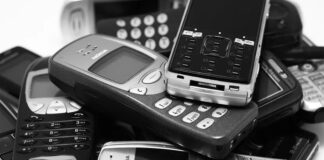
Contrast this with a standard three-by-four numeric keypad. Each number key holds at least three letters. To type “cat,” you press “2” three times. It works. It is efficient for some. Watch someone on a train text rapidly. They are skilled.
For others, it is cumbersome. It takes too long. Miniature QWERTY keyboards were designed to fix this. They give you a full layout. But they introduce a new problem.
The Finger Size Problem
Small screens have small keys. People with larger fingers struggle with precision. Poking lightly at a tiny plastic grid is frustrating. It leads to typos. It slows you down.
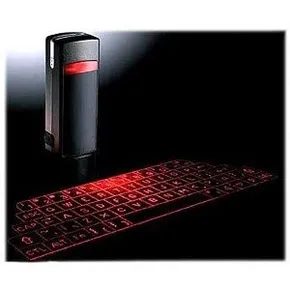
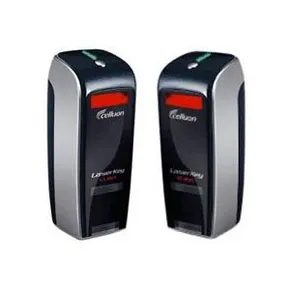
Manufacturers sought a different solution. They created virtual laser keyboards. These devices connect to your phone. They project a full-sized QWERTY layout onto any flat surface.
But how does this actually work? And does it function well enough to replace physical keys?
The Hardware Reality Check
Regular keyboards are basically small computers in their own right. If you crack one open, you’ll find a processor and circuitry that mirrors the guts of your main PC. Under every key is a grid. Press down, the switch closes, and a tiny electrical current fires off. The onboard processor analyzes that signal and sends it to your computer via USB or Bluetooth. It’s mechanical. It’s predictable. It’s hardware.
Virtual laser keyboards strip all that away. No switches. No moving parts. Just light.
Projecting the Interface
The device uses a red diode laser to project a QWERTY layout onto a flat, non-reflective surface. It’s not magic. It’s optics. The laser beam passes through a Diffractive Optical Element (DOE)—a microscopic template of a keyboard—and special lenses expand that image to a readable size. You see the keys. You can’t feel them.
This projection alone does nothing. It’s just a picture. To make it functional, the device needs to know where your fingers are hitting those projected keys.
Tracking the Input
Here is where it gets interesting. The device shoots a thin plane of invisible infrared (IR) light parallel to the surface, hovering just millimeters above the projected keys.
When you type, your fingers break that IR beam. A CMOS sensor captures the position. A chip called the Virtual Interface Processing Core analyzes exactly which part of the keyboard image you’re interacting with. It translates that spatial data into keystrokes and sends the command to your computer.
It’s not typing. It’s tracking.
“A simple image of a keyboard won’t get you anywhere — something needs to analyze the information you type in.”
The Practical Limitations
So how do you use a virtual laser keyboard? You don’t really “use” it in the traditional sense. You interact with a projection. But there are catch. The surface must be non-reflective. Type on a glass table or a glossy magazine, and the projection washes out. You need a matte surface.
The infrared plane is also sensitive. If your hands are too high, the sensor loses the signal. If the ambient light is too bright, it interferes with the CMOS imaging. And because there’s no tactile feedback, you’re blind typing to a ghost.
It’s clever engineering. But is it practical for daily use? Probably not. It’s a novelty. A party trick. A solution looking for a problem. The tech works. The science is sound. But unless you’re trying to type on a rock in the middle of a desert, you’re better off with a standard mechanical keyboard.
How to Use a Virtual Laser Keyboard Properly
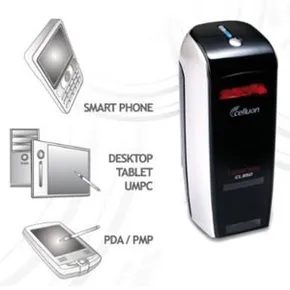
The hardware itself is deceptive. It looks like a gadget from tomorrow, sleek and small enough to slip into a pocket alongside a pack of gum. Weighing in at about two ounces (56.7 grams), the device promises portability without bulk. But the promise dissolves the moment you try to use it in the wild.
You cannot just pull this out on a bus and type on your lap. The illusion requires specific conditions. The device projects a red laser image of a full-size QWERTY layout—usually 60 or more keys—but the surface beneath it matters immensely. It must be flat, opaque, and non-reflective. Shine it on jeans, and the sensors in the device get confused. Shine it on a shiny table, and it fails. The technology relies on tracking the position of your fingertips against a stable background.
Once you find that perfect, matte surface, the connection happens. Most units link to PDAs, smartphones, or laptops via Bluetooth wireless technology. A USB cable is an option, but wireless is the standard for moving these devices around. The keystrokes register in whatever program is open—email, word processing, text fields—just like a physical keyboard.
There is no tactile feedback, though. No pops. No clicks. Just the sensation of pressing your fingers against a smooth, unyielding surface. It takes practice to get used to typing without the mechanical resistance of switches. You have to learn to trust the projection.
“Laser keyboard getting USB update, still hard to use.”
The learning curve is real. Many users struggle to become accustomed to the lack of physical key travel. It feels imprecise at first. The novelty of a sci-fi interface wears off quickly when you’re trying to hit a specific letter without looking down at your hands, which are effectively hovering over a ghost image.
Sources cited in earlier reports highlight the technical limitations. The devices use optical sensors to track finger placement, a process that demands consistency in lighting and surface texture. When the environment changes—say, moving from a quiet office desk to a crowded coffee shop—the utility vanishes.
The hardware has evolved, with some models adding USB connectivity alongside Bluetooth, but the core experience remains unchanged. It is convenient until it isn’t. You carry it for the emergency typing session that never quite works the way you expect.
Lumio.com and Golan Technology have both documented the user experience, noting the friction between the marketing hype and the physical reality. Bonnie Cha of CNET pointed out the Bluetooth connectivity issues, while Jason Chen at Gizmodo noted that even with hardware updates, the fundamental usability challenge persisted.
It is a clever trick of light and logic. But light can be scattered. Light can be reflected away. And logic breaks down when your fingers can’t feel the keys they are pressing.