
Your PC is essentially a collection of parts. Motherboards. Keyboards. Mice. Speakers. On Microsoft Windows, there is one tool that lets you peek under the hood and see how all those pieces talk to each other. It is called Device Manager.
Microsoft introduced this utility in Windows 95. It lives inside the Control Panel, serving as a central hub for hardware configuration. You can enable devices. Disable them. Install new drivers. Or tell Windows to ignore broken components entirely.
Launching the Utility
You do not need to hunt through menus to open it. Press Windows + R to pop up the Run dialog. Type devmgmt.msc. Hit Enter.
Or just right-click the Start button on the taskbar and select Device Manager from the context menu. Both methods work instantly.
Reading the Hardware List
Once open, you will see a categorized tree of your installed hardware. Disk Drives. Imaging Devices. Batteries. The titles are usually self-explanatory.
But here is the catch. Some drivers are hidden by default. You might not see everything. To reveal them, go to the View menu. Click Show Hidden Devices. Suddenly, low-level system drivers and third-party software components appear in the list.
“If you see any unusual icons, these are clues to any number of problematic issues you might encounter.”
Decoding Icon Errors
You can click through the list. But more importantly, you need to know what the icons mean. A standard device has no icon next to it. Others tell you exactly what is wrong.
A gray arrow pointing down means the device is disabled. Usually, a user did this manually. It can also mean the hardware is physically there, but lacks a working driver.
A yellow triangle with an exclamation point is the one you want to fix. It means the device is not working properly. Something is broken.
A question mark indicates missing software. The device does not have the exact or most recent driver installed. It is running on a compatible, generic driver instead.
Why It Matters
Computer components malfunction. Sometimes the hardware is fine. The driver is the culprit. Device Manager provides the interface to troubleshoot these errors. It lets you update drivers. Roll back changes. Or uninstall and reinstall the connection.
It is not just for experts. If your Wi-Fi drops or your printer ignores you, this is where you look first. The icons provide immediate feedback on what is broken.
Knowing how to navigate this list saves hours of guessing. You stop throwing parts at the problem. You start fixing the root cause.
There are more steps to take once you find a yellow triangle. But first, you need to see what is there.
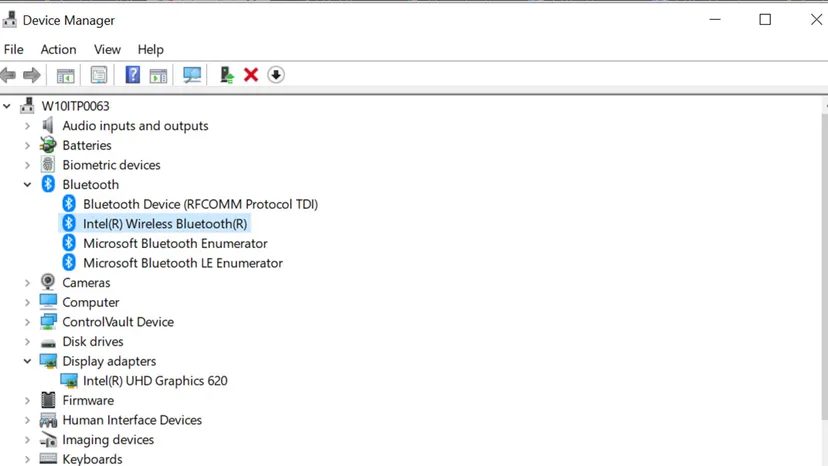
A silent drive is annoying. If your DVD drive isn’t working, stop guessing and start looking. Open Device Manager and scan the list. Look for DVD/CD-ROM Drives. Click the arrow to expand the list. If your drive has a gray down arrow next to it, Windows sees it but won’t talk to it. The physical connection is probably fine. The driver is the problem.
Right-click the drive. Select Properties. Click the Driver tab. You will see two paths forward. Option one: let Windows search for the driver automatically. Option two: point Windows to a folder on your hard drive where you saved the correct file.
“Device Manager isn’t a flashy feature. It’s a powerful tool for controlling your computer’s hardware.”
This tool lets you tinker. You can learn how to handle problematic components before they break completely. It is not just for fixing broken things. It is for understanding what is running your machine.
Driver History and Updates
Curious about what changed? You can see the entire history of drivers for any specific component. Right-click the device again. Go to Properties. This time, click the Events tab. You will see a list of every driver associated with that device. You also get the exact time those changes happened.
Knowing when a driver update broke your system helps you roll back quickly. It saves hours of troubleshooting.
Frequently Asked Questions
What is Device Manager used for?
It manages all devices installed on your computer. It lets you update, disable, and troubleshoot hardware.